
How to Build an Automated Lead Follow-Up System That Never Misses a Prospect (Using GHL)
Quick answer: An automated lead follow-up system uses GoHighLevel Workflows to send SMS and email messages at set intervals the moment a new prospect enters your pipeline, so no lead waits on you to remember to follow up. The system fires the first message within minutes of opt-in, follows with email the next day, and continues on a timed sequence until the lead responds or the sequence ends. Speed matters more than most business owners realize: the MIT/InsideSales.com Lead Response Management Study found the odds of qualifying a lead drop 21 times when contact takes 30 minutes instead of 5. One Frederick-area service business increased lead response rate by 312% after switching from manual call-backs to a GHL follow-up workflow, with no change except the timing and consistency of outreach. This post walks through exactly how to build that system.
What Is an Automated Lead Follow-Up System?
An automated lead follow-up system is a sequence of pre-built messages, sent by SMS, email, or both, that trigger automatically when a new prospect enters your pipeline. Instead of relying on you or a staff member to remember to follow up, the system fires immediately and continues at set intervals until the lead responds or reaches the end of the sequence.
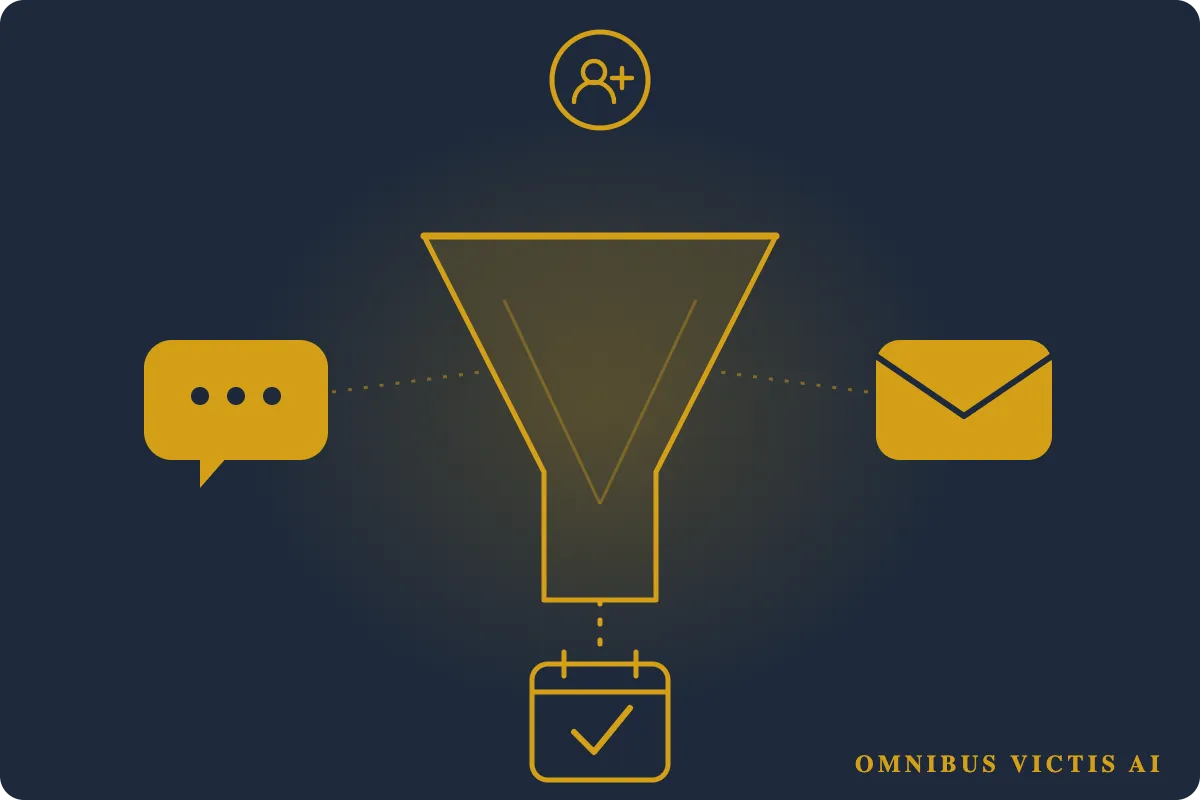
In GoHighLevel (GHL), this is built using Workflows. A trigger fires when a new contact submits a form, books an appointment, or gets added to a pipeline stage. From there, a multi-step sequence runs on autopilot: it sends the first SMS within minutes of opt-in, follows up by email the next day, and continues with timed messages until you get a reply or convert the contact.
Done right, this system eliminates the single biggest reason small businesses lose leads: slow or inconsistent follow-up.
Why Most Small Businesses Lose Leads Before the First Conversation
Speed matters more than most business owners realize. The MIT/InsideSales.com Lead Response Management Study found that the odds of qualifying a lead drop 21 times when contact takes 30 minutes instead of 5. By the time you finish your current job, eat lunch, or end a meeting, the prospect has already moved on, or called a competitor.
The problem is not effort. Most small business owners work hard. The problem is that manual follow-up requires you to be in two places at once: doing the work that pays you and also managing the pipeline that fills your calendar.
That tension never fully resolves unless you automate it.
A Frederick-area service business increased lead response rate by 312% after replacing their manual call-back process with a GHL follow-up workflow. Their team went from chasing cold leads at the end of the week to fielding warm replies throughout the day. Nothing changed except the timing and consistency of outreach.
This post walks you through exactly how to build that system.
What You Need Before You Start
Before building the workflow, make sure you have the following in place inside GoHighLevel:
A form or funnel page that captures lead name, phone, and email
A pipeline with at least one stage for new leads (e.g., "New Inquiry")
A2P 10DLC registration approved for SMS sending
Email sending domain verified and configured
If you are still setting up GHL for your business, start with GoHighLevel for Small Businesses, which covers the foundational setup before you build any automation.
The Follow-Up Sequence: Timing and Message Types
This is the core of the system. The sequence below is a proven starting point for service businesses. You can adjust the timing and copy to fit your industry.
The sequence stops automatically when the contact replies to any message or books a call. You do not want to keep texting someone who has already converted.
Step 1: Create Your Workflow Trigger
In GHL, navigate to Automation → Workflows → New Workflow.
Set the trigger to Form Submitted (or Appointment Booked, or Contact Added to Pipeline Stage, depending on where your leads enter). For most service businesses, form submission is the right starting point.
Configure the trigger filter to match your specific form. If you have multiple forms, such as a contact form, a booking form, or a lead magnet, create a separate workflow for each. Do not mix lead sources into a single workflow unless the follow-up sequence is identical.
Add an action immediately after the trigger: Add to Pipeline → select your pipeline and set the stage to "New Inquiry." This keeps your CRM organized from the moment a lead enters.
Step 2: Build the First SMS (Immediate)
Add an action: Send SMS.
Write a short, direct message. Keep it under 160 characters. Do not use formal language; this is a text message, not a press release.
Example:
"Hey {{contact.first_name}}, this is Brian from Omnibus Victis AI. Got your message. I'll be in touch shortly. Any questions in the meantime? Just reply here."
Use GHL's merge fields ({{contact.first_name}}) to personalize every message automatically.
After the SMS action, add a Wait step of 2 hours before the next action fires.
Step 3: Build the Day 0 Email
After the wait, add Send Email.
The first email is slightly longer than the SMS but still tight. Include:
Who you are and what you do
What the prospect can expect next (a call, a proposal, a demo)
One concrete result or social proof point
A single, clear call to action (book a call, reply to this email, click this link)
Do not write five paragraphs. Three is enough. The goal is to continue the conversation, not to close the deal in an email.
Step 4: Add the Remaining Sequence Steps
Repeat the process for each remaining touchpoint in the sequence table above. For each SMS or email step, use a Wait action to set the delay from the previous message.
GHL Wait steps support:
Minutes, hours, or days
"Until a specific day of the week" (useful for avoiding weekend texts)
"Until a specific time of day" (useful for staying inside business hours)
For SMS steps on Day 1 and Day 5, set the wait to fire during business hours, from 9 AM to 5 PM in the prospect's time zone. GHL handles time zone logic automatically based on the contact record.
Step 5: Add the Stop Condition
This is the step most people skip, and it matters.
Go back to the workflow settings and configure a Goal Event or add a conditional branch at the top of the workflow. When the contact replies to any message or books an appointment, the workflow should stop.
In GHL, you can do this with:
Remove from Workflow triggered by "Customer Replied"
A Goal step that checks for appointment booking or pipeline stage change
Without this, the system will keep texting prospects who have already started working with you. That damages trust and creates noise.
Step 6: Test the Workflow Before Going Live
Before activating the workflow for real leads, test it using a personal phone number and email address as a dummy contact.
Submit your own form, confirm the workflow fires, and check:
Does the first SMS arrive within 30 seconds?
Does the email look correct on mobile?
Are merge fields populating correctly?
Does the sequence stop when you reply?
Fix any issues before turning the workflow on for live traffic. GHL's workflow history tab shows exactly what fired and when, so use it.
Step 7: Activate and Monitor
Turn the workflow on. For the first week, check the workflow execution log daily. Look for:
Any steps that are failing
Contacts who are not entering the workflow (usually a trigger filter issue)
Unsubscribe requests (adjust your message tone if these are high)
After the first 30 days, pull the workflow stats: sends, opens, replies, and conversions. Adjust the message copy or timing for any step that underperforms.
Common Mistakes to Avoid
Sending Too Many Messages Too Fast
A sequence that fires three times in the first 24 hours comes across as desperate. Space your messages across multiple days and keep the tone conversational.
Not Personalizing the Messages
Generic messages get ignored. Use merge fields for first name at minimum. If your form collects service interest or location, use those too.
Forgetting the Stop Condition
If a converted client keeps receiving "follow-up" texts, they will question whether you actually know what you are doing. The stop condition is not optional.
Using the Same Sequence for Cold and Warm Leads
A lead who booked a call through your website is different from a lead who downloaded a free guide. Build separate workflows for different entry points.
How This Connects to Your Broader Automation Stack
A lead follow-up workflow is one piece of a larger system. Once a prospect replies, you need booking automation to get them on your calendar without back-and-forth. Once they book, you need confirmation and reminder sequences to reduce no-shows.
For the full picture on how these systems connect, see [How to Automate Bookings and Follow-Ups](/post/automate-bookings-follow-ups), which covers the booking and reminder layer that pairs with everything built here.
If you are still early in your automation journey and want to know which tasks to prioritize first, [Small Business Automation Tasks to Build First](/post/small-business-automation-tasks) breaks down where to start based on impact and build time.
Building This in Frederick, MD and Beyond
Based in Frederick, Maryland, Omnibus Victis AI builds lead follow-up systems for service businesses across the region, whether you are a contractor, a consultant, a nonprofit, or a professional services firm.
If you want this built for your business without spending weeks learning GHL, that is exactly what the Foundation plan covers: a complete, tested lead follow-up system wired to your existing forms and pipeline.
FAQ
What is an automated lead follow-up system in GoHighLevel?
It is a workflow built inside GHL that automatically sends SMS and email messages to new leads at set intervals after they submit a form or enter your pipeline. The system fires immediately when a lead comes in and continues sending until the lead replies, books, or reaches the end of the sequence, without any manual action from you.
How long should a lead follow-up sequence be?
For most small service businesses, a 5–7 message sequence spread over 7 days is enough. The first message should fire within minutes of opt-in. The sequence should stop automatically when the lead responds. Sequences longer than 7 days tend to generate more unsubscribes than conversions.
Does GoHighLevel support SMS automation for small businesses?
Yes. GHL includes native SMS sending inside workflows, with merge field personalization and time-zone-aware scheduling. You do need A2P 10DLC registration to send SMS to US numbers; this is a carrier requirement, not a GHL limitation.
What happens if a lead replies to my automated messages?
GHL routes all replies into the Conversations inbox, where you or a team member can respond directly. You should also configure your workflow to stop sending automated messages when a reply is received, since this prevents follow-up messages from firing after the conversation has already started.
Can I build this myself, or do I need an agency?
The workflow itself is buildable by a motivated non-technical owner in a few hours. The harder part is getting the trigger logic, stop conditions, and message copy right, and testing it properly before going live. If you want it done correctly the first time and wired to your existing forms and pipeline, an agency build eliminates the trial-and-error period.
About the Author
Brian Stratton is the founder of Omnibus Victis AI, an AI automation agency based in Frederick, MD. He builds AI agentic automation systems for small businesses and nonprofits.

